Do this once, calmly, with your bank statement in front of you. By the end, Ma Marge knows your situation and all you have to do is record what changes.
20 minutes
1Step 1 : Let the app introduce itself
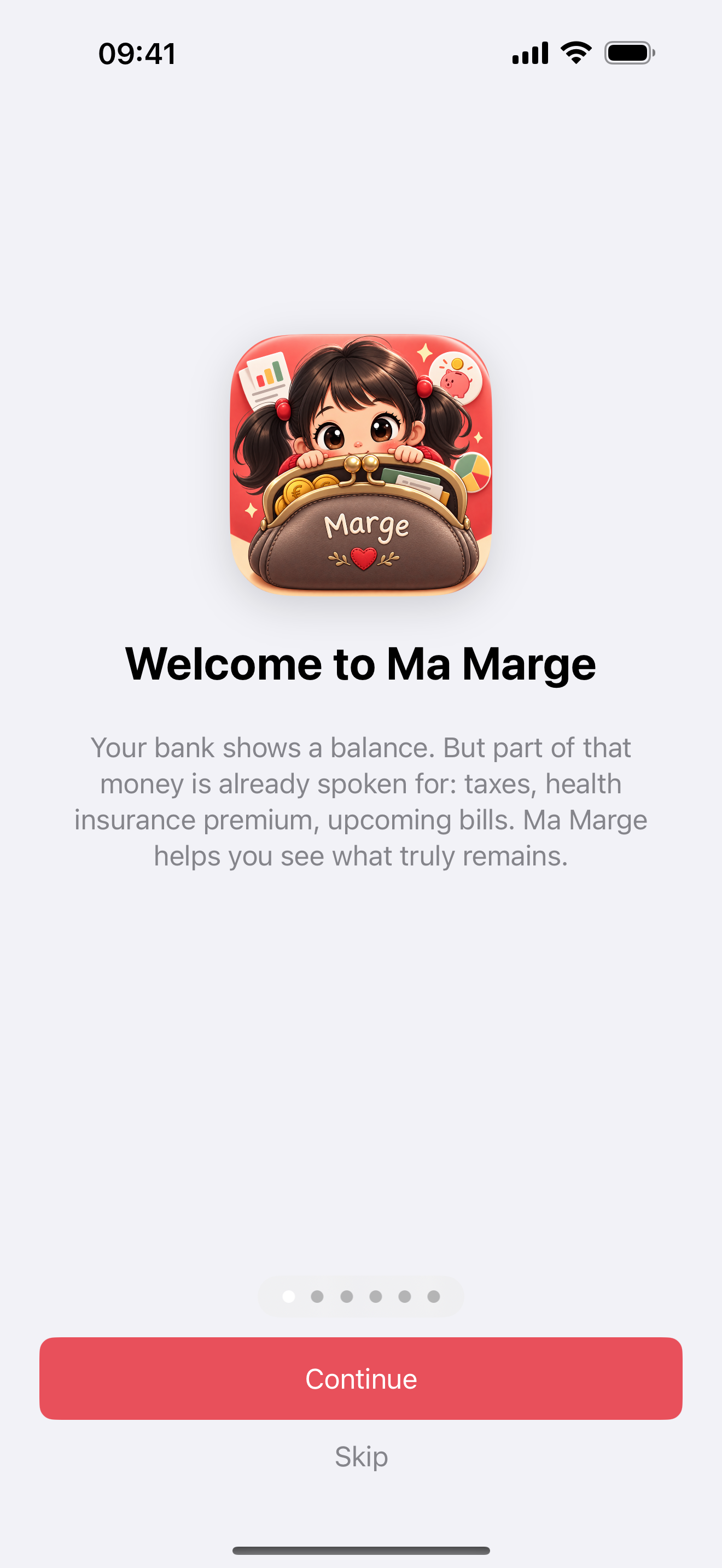
On first launch, six pages explain the idea and three habits. Read them: it is the only time the app talks to you at length.
Install Ma Marge and open it.
Swipe through the introduction to the end.
You can see it again later from Settings.
The three habits: record the same day, set aside on payday, reconcile once a month.
2Step 2 : Create your accounts
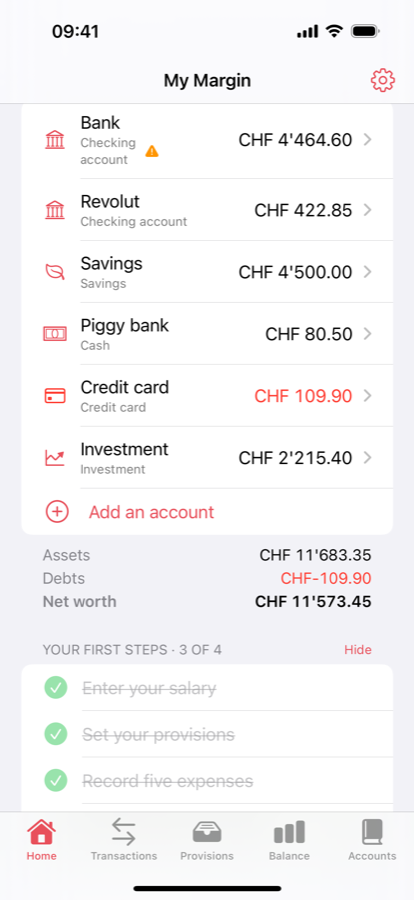
One account per pocket of money. Start with your bank; add the rest only if it helps.
Home → Accounts → Add.
Pick a suggested name (Bank, Piggy bank, Revolut…): the type sets itself.
Add the piggy bank if you keep cash, the credit card if you have one.
Savings and investments are deliberately kept out of the available amount.
3Step 3 : Enter the starting balance
This is the zero point: an account's real balance on a date. Everything else follows from it.
Open your bank's app, note today's balance.
In Ma Marge, on the account's page, enter that amount and the date.
Do it for each account.
“On the morning of 1 September”: the balance holds for that day, before the transactions you are about to enter.
4Step 4 : Record your income and fixed charges
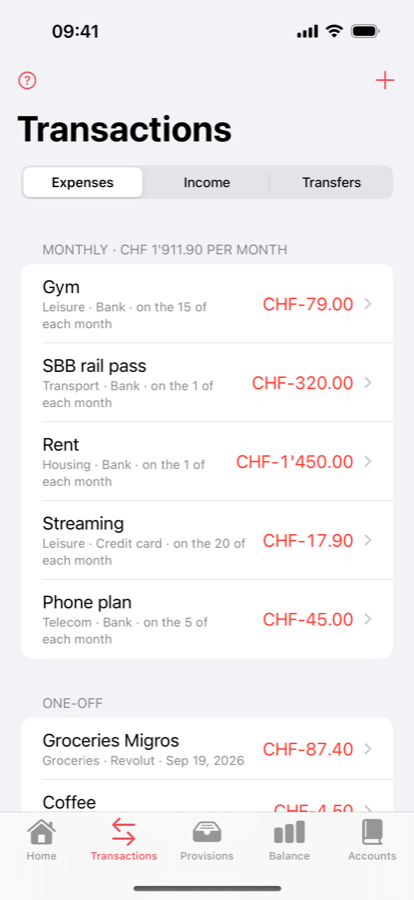
Whatever comes back every month is entered once, as monthly.
Transactions → Add income: your salary, monthly.
Add rent, insurance, subscriptions, electricity: monthly as well.
Attach each line to the right account.
Ten minutes here saves you one entry a month for years.
5Step 5 : Set your provisions
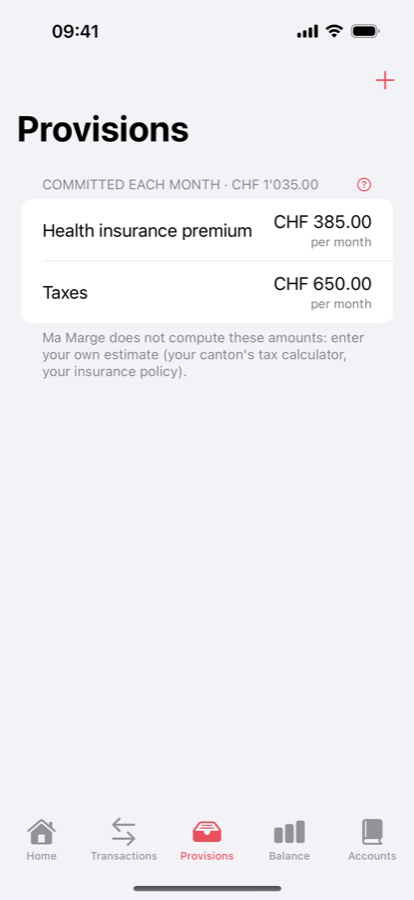
This is the step that changes everything: reserving every month what you will pay later.
Provisions → Add.
Taxes: take your last bill or your authority's estimate, divide by twelve.
Health insurance, deductible, holidays, car: add what applies to you.
The app computes no tax: you enter your own estimate and it treats it as a reserve.
6Step 6 : Read your truly available amount
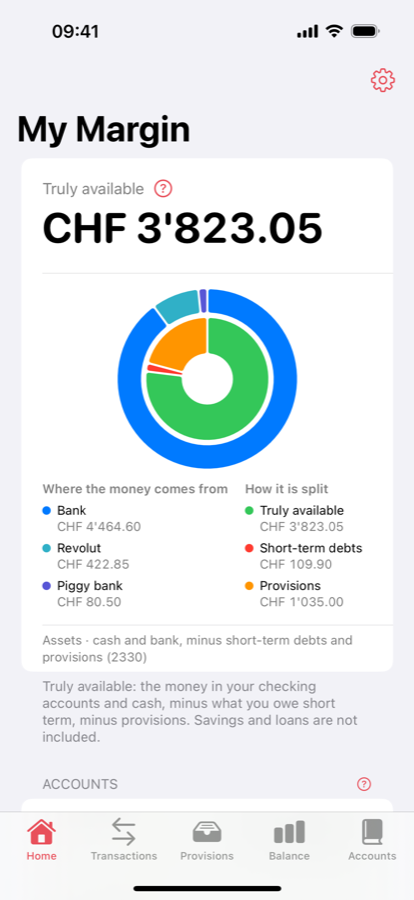
Back to Home: the large figure now accounts for everything you have just entered.
Tap the figure to see the calculation in detail.
Look at the ring: where the money comes from, and what is already reserved.
If the figure surprises you, that is normal — it is exactly what a bank statement does not show.
It is this figure, not the bank balance, that answers “can I afford this?”.
7Step 7 : Simulate a purchase before making it
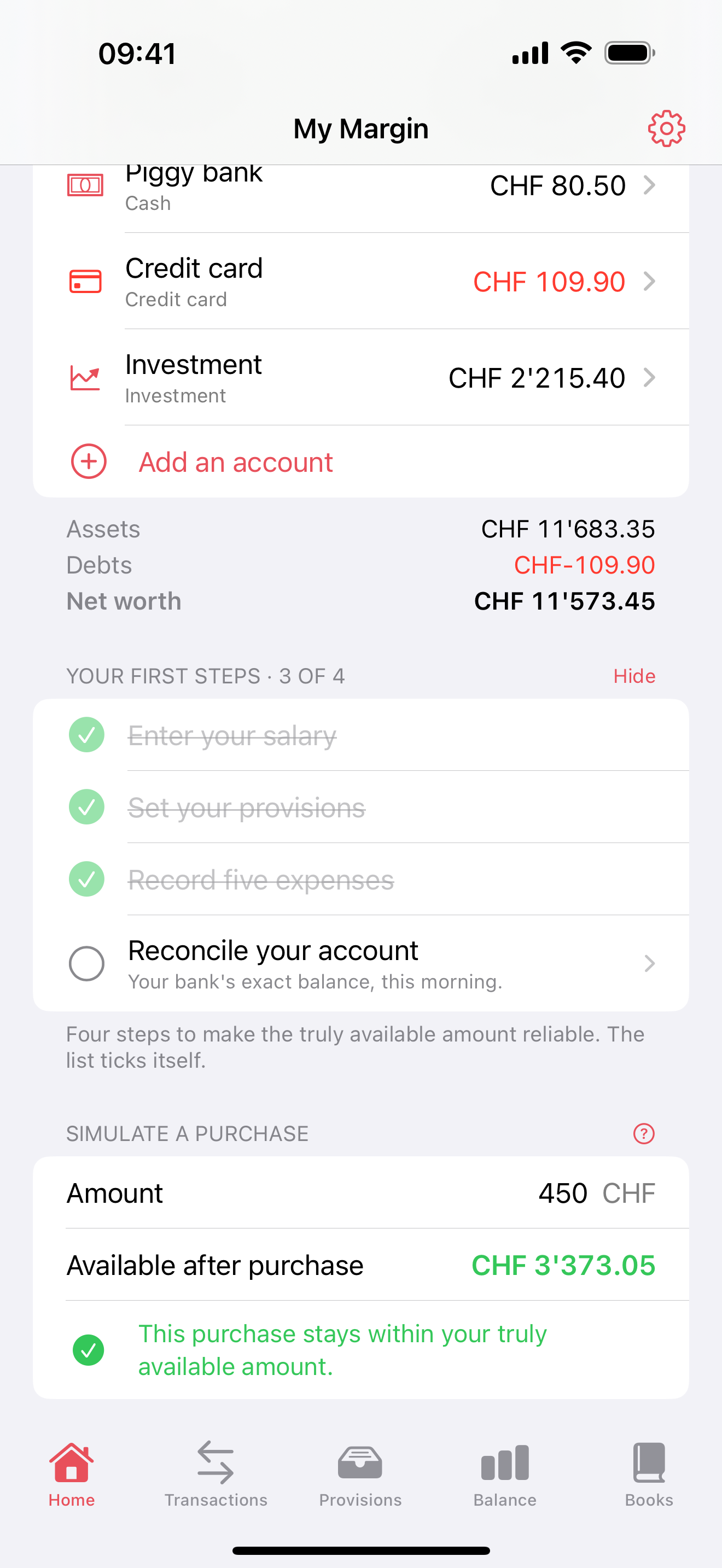
Before a purchase that matters, see what would be left.
Home → the simulator, at the bottom.
Type the amount you have in mind.
Read what would be left, and whether the purchase eats into your provisions.
A purchase that eats into the provisions is not forbidden: it is simply paid for with the tax money.
8Step 8 : Settle into the monthly routine
On payday, ten minutes, and the app stays accurate all year.
Reconcile each account: copy the bank's real balance.
Add any one-off expenses from the past month you may have missed.
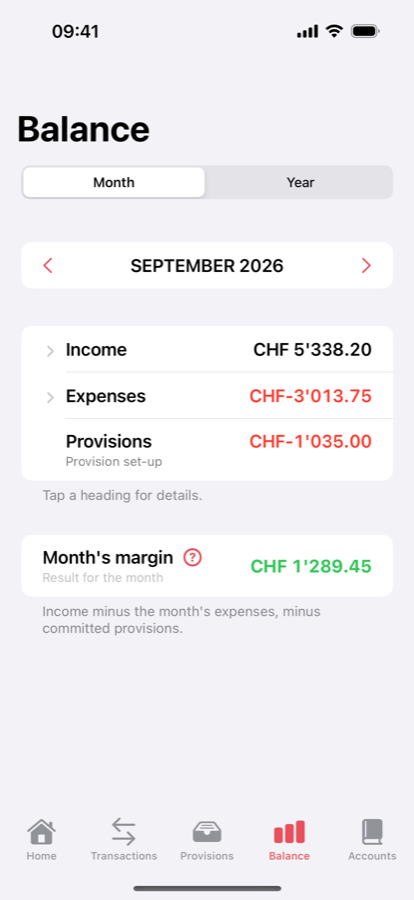
Open the month's balance: does the margin hold?
A gap between Ma Marge and the bank is not a fault: it is what reconciliation is there to correct.
What next?
You know the essentials. The guide details each screen, the concepts, and the advanced mode for accounting courses.
 Ma Marge