 Ma Marge
Guide
Every screen in Ma Marge, explained
Ma Marge is four screens and one idea: never put a raw balance first. This guide explains what each screen shows, the words that keep coming back, and the habits that save time. If you are new to the app, start with the tutorial instead: twenty minutes, and everything is in place.
Start with the tutorialTwenty minutes to set everything up
Home: the truly available amount
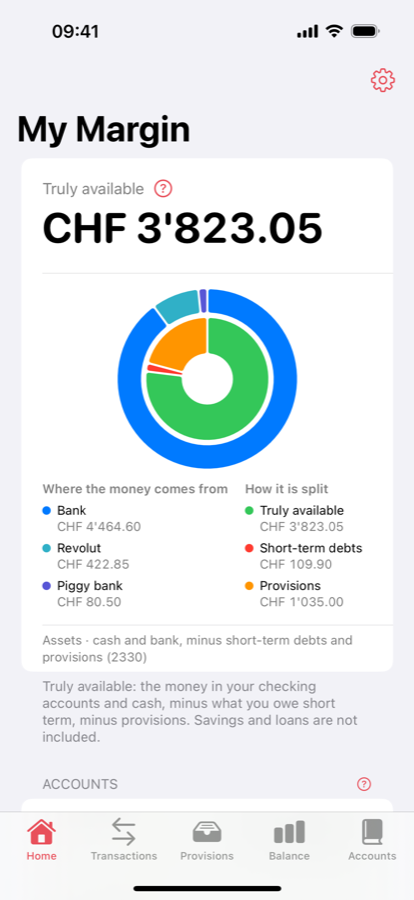
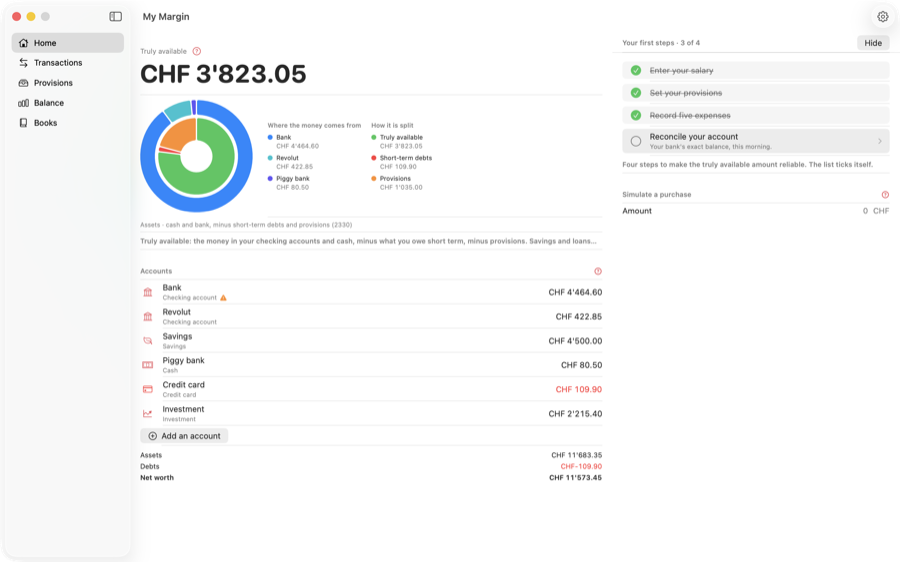
The large figure at the top is the truly available amount: what is in your current accounts, your cash and your piggy bank, minus your short-term debts, minus what you have set aside. It is the only figure Ma Marge puts first, because it is the only one that answers the question “can I afford this?”.
The ring shows where it comes from: outside, each account's share; inside, what is free, what is reserved and what is owed. Tap the figure to see the calculation in detail. Further down, the “Your first steps” list ticks itself as you fill the app in, and a banner appears when an account has not been reconciled for thirty days.
The simulator: before you buy
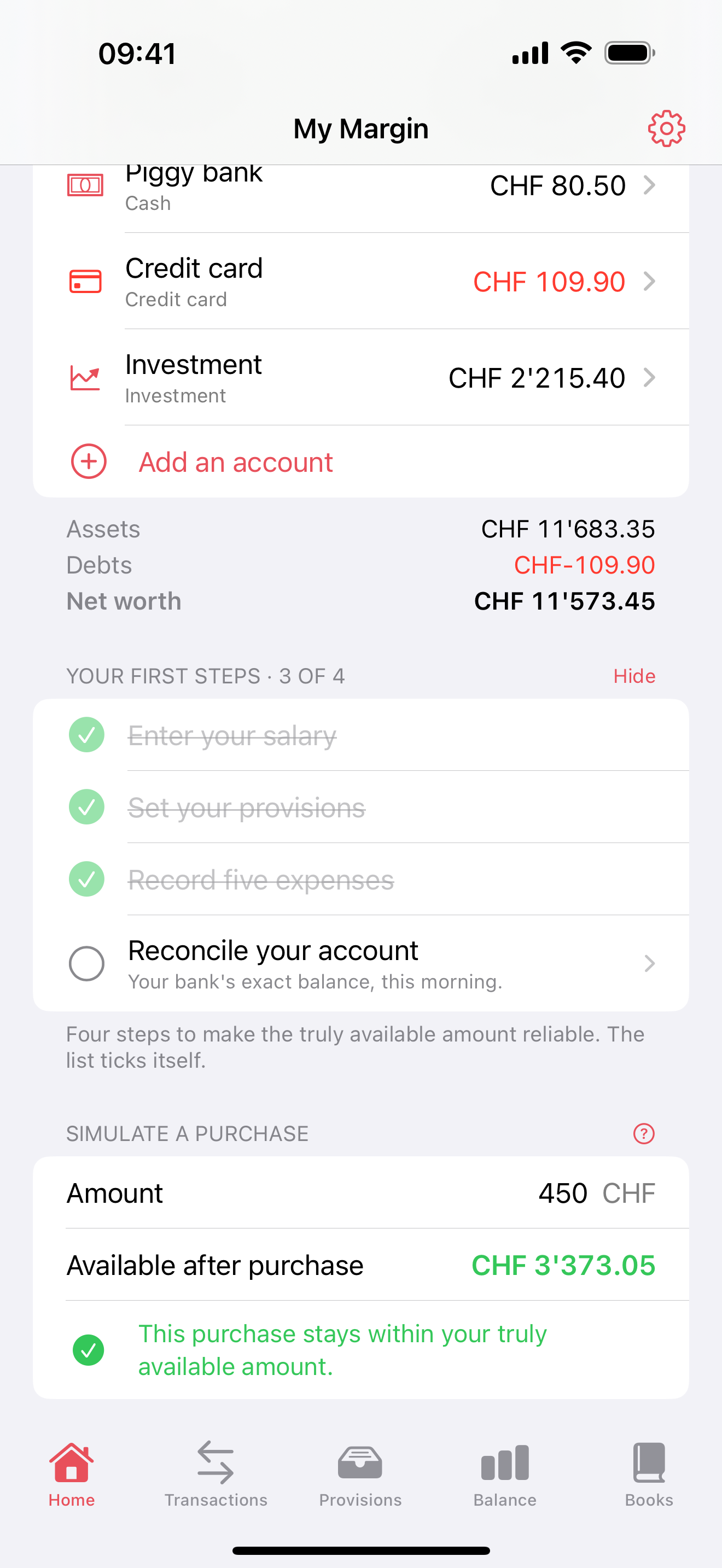
At the bottom of Home, a field: type the amount of a purchase you are considering. Ma Marge shows what would be left of your truly available amount, and tells you whether the purchase eats into your provisions.
That is the question you actually ask yourself in front of a shop window, and the one a bank balance does not answer. A purchase that eats into the provisions is not forbidden: it is simply paid for with the tax money — better to know beforehand.
Accounts: your pockets of money
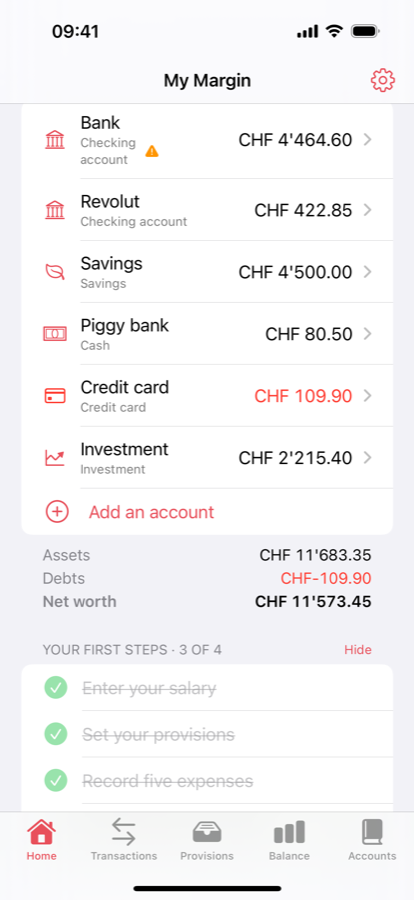
An account is a pocket: your bank, a prepaid card, the piggy bank, savings, an investment, a credit card, a loan. Each one has a dated reference balance — “on the morning of 1 September there was 2,340” — and everything else follows from it: Ma Marge adds your income and subtracts your expenses starting from that point.
Current accounts, cash and the piggy bank count towards the truly available amount: that is money you can spend tomorrow. Savings and investments do not, on purpose — putting them in the available amount would be giving yourself permission to spend them. Credit cards and short-term debts are subtracted. At the bottom of the screen: assets, debts, net worth.
Transactions: what comes in, what goes out
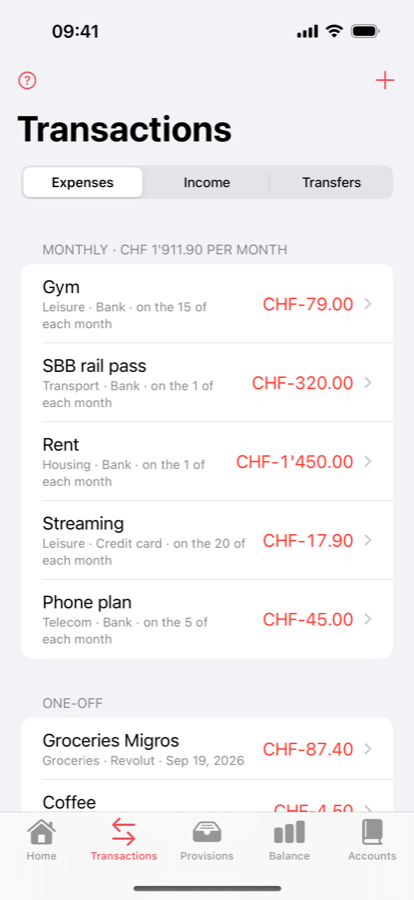
Three kinds of entries: expenses, income, and transfers from one account to another. Each is either one-off or monthly — rent is entered once, not twelve times. A transfer does not change your net worth: it moves money, that is all.
Do not try to record every cent. Group the day's small expenses into one line in the evening, round, use a flat monthly amount for groceries if you always buy the same things. Accuracy comes from the monthly reconciliation, not from your memory.
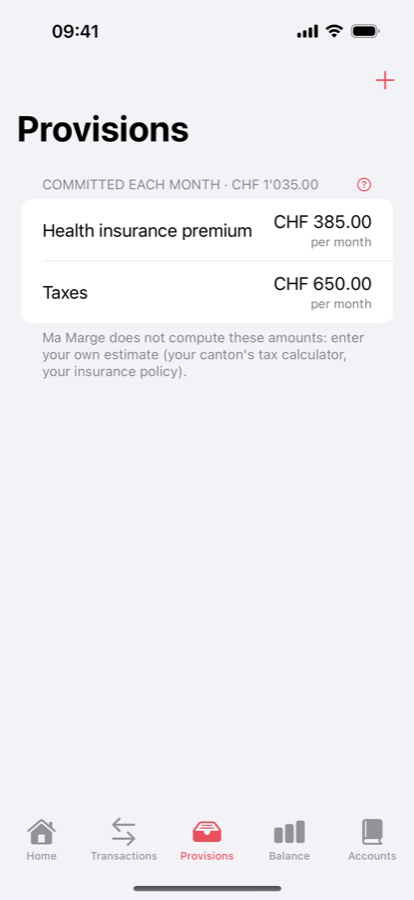
Provisions: money already promised
A provision is an amount you decide to set aside every month for a future charge: taxes, health insurance, a deductible, holidays, replacing the car. You set the amount yourself — the app never works out a tax or a premium for you — and it is removed from the available amount from the first day of the month.
This is the heart of Ma Marge. Instead of discovering the bill in November, you watch it leave a little every month, and the figure you read on Home is already net of what is promised.
The balance: the month, then the year
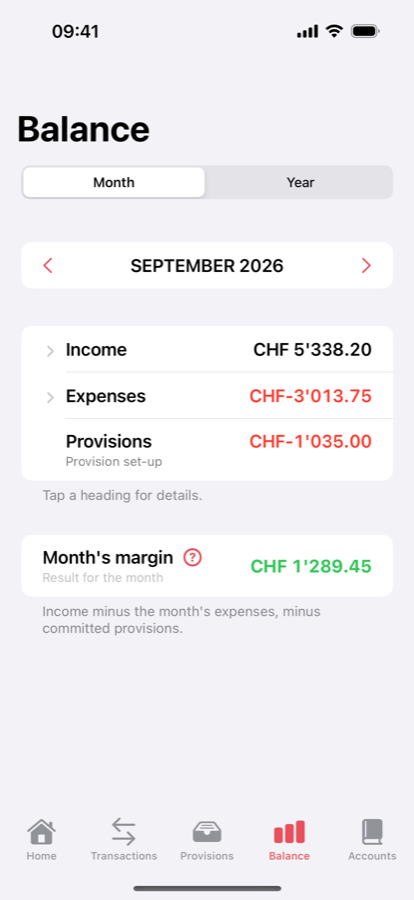
Income, expenses, provisions, and the month's margin: what is left once everything has gone through. Each heading collapses to keep the screen readable, you move from one month to the next, and the Year view projects the trend over twelve months.
This is the end-of-month screen: you can see whether the margin holds, and which heading went off course.
Advanced mode: the accounting view
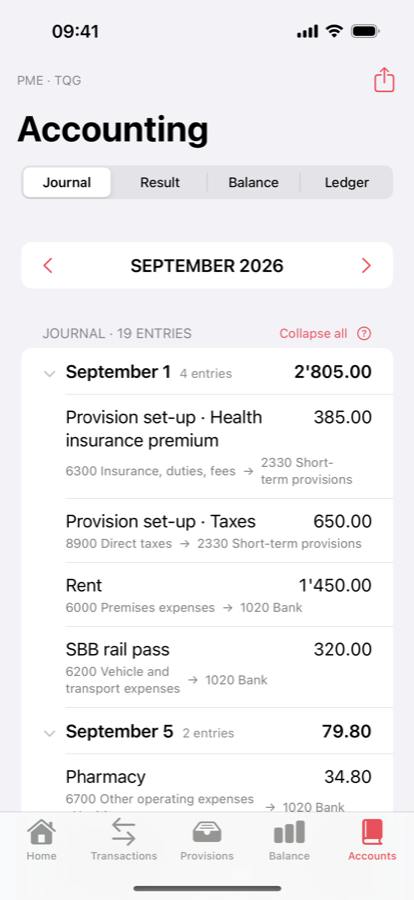
If you are taking an accounting course, turn on advanced mode in Settings: an Accounting tab appears, with the double-entry journal, the income statement, the balance sheet and the ledger, all derived from the same entries. Nothing extra to enter.
Pick your country's chart of accounts: Switzerland (SME chart, as taught in introductory courses), France (PCG), Germany (SKR 04), Austria (ÖKR), Belgium (PCMN) or Italy (Civil Code schedule). Account names are in the language of the chart, as in your textbook, and the journal is laid out the way you are taught. The key entry is the provision charge. Everything exports to printable PDF.
The words, once and for all
In the app, every concept has a “?” button that explains it where it appears. Here are the same definitions, gathered in one place.
- Truly available
- Current accounts + cash + piggy bank − short-term debts − provisions. The figure on Home.
- Reference balance
- An account's actual balance on a given date, copied from your bank. The starting point of every calculation.
- Reconcile
- Entering that reference balance again to start from the truth. Once a month is enough.
- Provision
- An amount reserved every month for a future charge. It leaves the available amount without leaving your account.
- Transfer
- A movement of money between two of your accounts. It does not change your net worth.
- Net worth
- Everything you have minus everything you owe, savings and investments included.
- The month's margin
- Income − expenses − provisions for the month. What is left, or what is missing.
Making entry simple
A budget app abandoned after three weeks is worth nothing. The whole point is to keep going, so do as little as possible.
- One line a day
- In the evening, add up the day's small expenses and enter a single line: “Daily 23.50”. Nobody needs the detail of three coffees.
- Flat monthly amounts
- Groceries, transport, subscriptions: if the amount barely moves, enter a monthly expense and leave it alone.
- Round
- To the nearest unit. The difference is caught at reconciliation.
- Reconcile rather than chase
- A forgotten expense is not a problem: the monthly reconciliation puts the counter back on the bank's real balance. That is by design.
- On payday
- The same day every month: reconcile, check the provisions, look at the balance. Ten minutes.
Settings
Settings opens from Home. Everything in it is optional.
- Currency
- The currency is chosen here: only the display changes, no amount is converted.
- Negative amounts
- Minus sign or parentheses, in red or in black: the convention of financial statements, or whichever stays legible in black and white.
- iCloud
- Off by default. Once on, your data is on your other devices, in your private, encrypted iCloud space.
- Advanced mode
- Brings up the Accounting tab and the accounting vocabulary. No effect on your data.
- Reconciliation reminder
- The thirty-day reminder can be turned off, account by account.
iPhone, iPad, Mac
A single purchase covers all three. On iPad, Home moves to two columns; on the Mac it is a true native app with a sidebar, not a blown-up iPhone app. Turn on iCloud to find your data on each of them.
Still have a question?
The frequently asked questions cover the most common cases, in particular the balance that does not match the bank. Otherwise, write: info@pasahome.org.